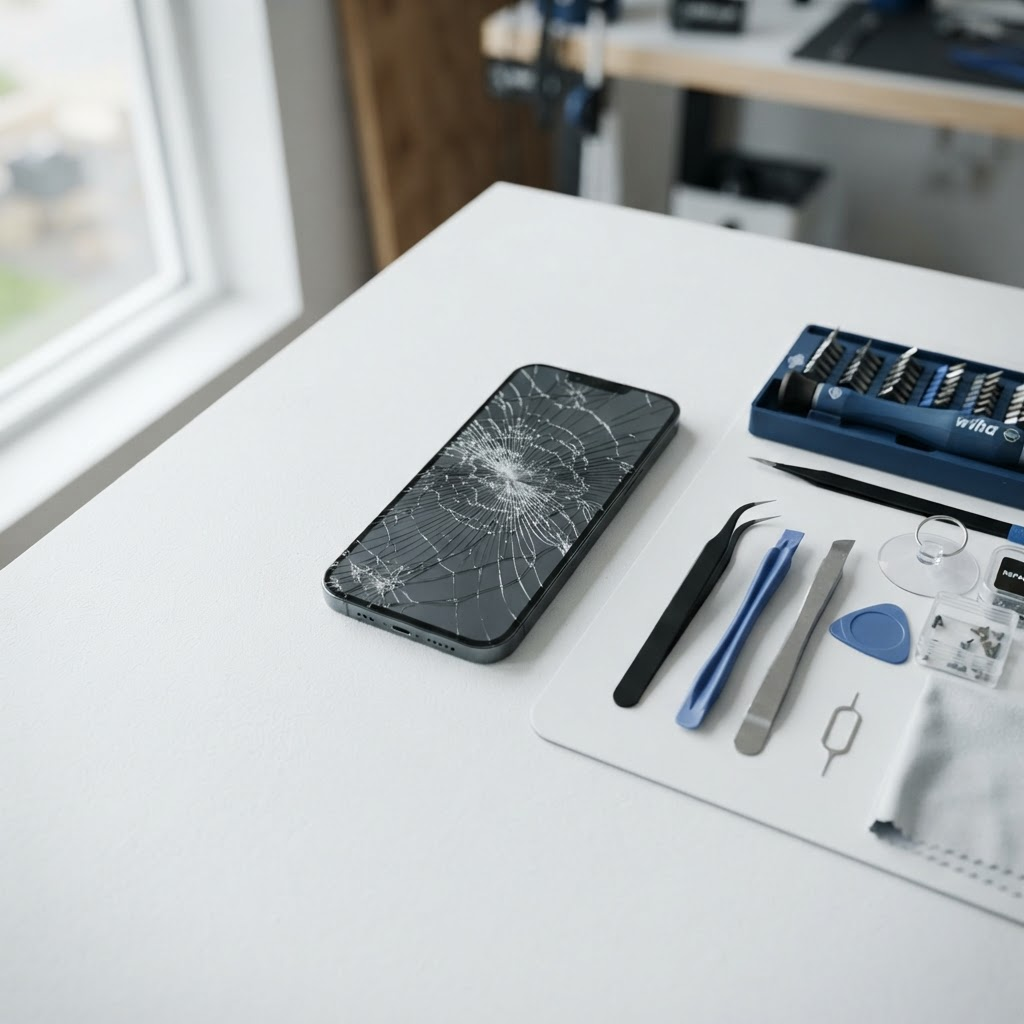
iPhone Won't Turn On? 7 Fixes to Try in Fort Worth Before You Book a Repair
You press the side button. Nothing. You press it again, harder, as if that ever helped. Still nothing — just a black screen where your phone used to be. It is one of the worst feelings in modern life, because your iPhone holds your photos, your messages, your bank app, and your ride home.
Before you panic, take a breath. Most iPhones that will not turn on are not dead. They are flat, stuck, or confused — and one of the seven fixes below brings most of them back. Work through them in order. They go from the simplest to the most involved, and you should only move on when the previous step genuinely did not work.
1. Charge It Properly — And Give It Time
This sounds obvious, and that is exactly why people skip it. A fully drained iPhone does not spring back to life the second you plug it in. It can take several minutes of charging before the screen shows anything at all, and a battery that has been flat for a while can take even longer.
Plug your iPhone into a wall charger you know works — not a laptop USB port, not a car charger, a proper wall plug — and leave it alone for at least 30 minutes. Do not keep pressing the button every few seconds. After 30 minutes, you should see either the Apple logo or a low-battery icon with a charging cable underneath it. Either one means the phone is alive and the battery was simply empty.
If nothing appears after 30 minutes, do not conclude the phone is dead yet. The cable, the charger, or the port could be the problem, and that is what the next steps check.
2. Force Restart Your iPhone
A software crash can leave an iPhone looking completely dead when the hardware is fine. The screen is black, the buttons do nothing, and the phone seems to ignore you entirely. A force restart cuts through that — it restarts the phone at a lower level than a normal restart, without touching your data.
On an iPhone 8 or newer, including every iPhone 11, 12, 13, 14, 15, 16, and 17 model: quickly press and release the volume up button, quickly press and release the volume down button, then press and hold the side button until the Apple logo appears. Keep holding even if the screen stays black for ten or fifteen seconds — the logo can take a while to show up.
On an iPhone 7 or 7 Plus: press and hold the volume down button and the sleep/wake button together until the Apple logo appears. On an iPhone 6s or earlier: press and hold the home button and the sleep/wake button together until the Apple logo appears.
If the Apple logo shows up, let the phone finish starting. It may take a few minutes, and it may ask for your passcode. That is normal after a force restart.
3. Try a Different Cable and Charger
Charging cables fail quietly. A cable that worked yesterday can stop carrying enough power today, especially if it is frayed near the connector or has been bent at the same spot a hundred times. Cheap third-party cables are the worst offenders — they charge slowly, overheat, or stop working without warning.
Borrow a cable and charger that you know work on another iPhone, ideally an Apple cable or a certified one, and try again. If the phone starts charging with the borrowed setup, your cable or charger was the problem all along, and you have just saved yourself a repair bill.
Also try plugging the charger into a different wall socket. It sounds silly, but a dead socket or a switched-off outlet has fooled plenty of people into thinking their phone was broken.
4. Clean Out the Charging Port
If you carry your iPhone in a pocket or a bag, the charging port slowly fills with lint, dust, and pocket fluff. Over time that packed-down lint stops the cable from seating fully, so the phone charges intermittently or not at all — and a phone that never charges eventually looks dead.
Shine a light into the port and look. If you can see lint or debris, remove it gently with a wooden or plastic toothpick. Work carefully and do not use anything metal, and do not push hard — the small pins inside the port are delicate, and bending one turns a free fix into a real repair. Blow out any loose dust, then plug the cable back in and check whether it clicks in firmly now.
If the cable still feels loose or wobbly after cleaning, the port itself may be worn or damaged, and that is a repair job. Charging port repairs start from $49.99, and you can see per-model prices in our iPhone repair cost guide at fixvise.com/pricing/iphone-repair-cost.
5. Check Whether the Phone Is On But the Screen Is Black
Sometimes the phone is working fine and the screen is the problem. If your iPhone vibrates when you flip the silent switch, makes a sound when you plug it in, or responds when you say "Hey Siri," the phone is on — the display just is not showing anything.
This matters because it changes the diagnosis completely. A phone that is on with a black screen usually needs a screen repair, not a battery or a board repair. Try a force restart first, as described above, because a stuck display can come back with one. If the phone clearly responds — sounds, vibrations, Siri — but the screen stays black no matter what, the screen itself has likely failed, and a replacement screen fixes it.
Screen repairs start from $49.99. Our guide to a black screen that still works covers this in more detail, and our iPhone repair cost guide at fixvise.com/pricing/iphone-repair-cost lists per-model screen prices.
6. Think About What Happened Just Before It Died
A phone that worked fine and then suddenly will not turn on usually has a reason, and remembering it narrows the fix fast.
Did it get wet? Even a quick drop in a sink or a spill can leave moisture inside the phone that stops it from starting. Do not charge a wet phone and do not try to dry it with a hair dryer — heat makes water damage worse. Leave it powered off and get it checked. Our guide to a dropped phone in water explains what to do first.
Did it fall? A hard drop can disconnect the battery or damage the charging port or the board. If the phone died right after a fall and none of the steps above bring it back, that is a hardware problem, not a software one.
Did it die after an update? A failed iOS update can leave a phone stuck. If your iPhone shows a computer icon, a cable icon, or the Apple logo stuck on screen for more than an hour, that is a different problem from a fully dead phone, and it usually needs a restore through a computer.
7. Connect It to a Computer As a Last Resort
If nothing else has worked, connect your iPhone to a computer with a cable and open Finder on a Mac or iTunes on a Windows PC. If the computer recognizes the phone, you will see the option to update or restore it. Choose Update first — it reinstalls iOS without erasing your data.
Only choose Restore if Update fails, and understand what it means: a restore erases the phone and reinstalls iOS from scratch. If you have a recent backup, you can get everything back afterwards. If you do not have a backup, a restore means losing what is on the phone, so think carefully before you tap it.
If the computer does not recognize the phone at all, or the phone will not stay connected long enough to update, that points to a hardware fault — most often the battery, the charging port, or the board — and that is the point to stop doing it yourself.
When to Stop Troubleshooting and Book a Repair
You have done enough when you have charged it properly, force restarted it, tried a known-good cable, cleaned the port, and checked whether the phone is actually on. If the phone still will not turn on after all of that, the fault is inside the phone, and opening it yourself risks making it worse. iPhones are sealed tight, the battery sits right under the screen, and one slipped tool can turn a simple battery swap into board damage.
A professional diagnosis finds the real cause — battery, charging port, screen, or board — and fixes only what is actually broken. Repairs start from $49.99, and the exact price depends on your model and what is wrong, which you can check in our iPhone repair cost guide at fixvise.com/pricing/iphone-repair-cost. Repair time varies by repair type, but most iPhone repairs are completed in a single on-site visit. Book online at fixvise.com/book or call or text (979) 766-9228, and a technician will come to you anywhere in Fort Worth and the DFW Metroplex. Payment is taken when you book, so we can order your part and confirm your visit — and if you are not confident yet, pay after your repair is completed is available on request.
One last tip, for after your phone is working again: back it up. A dead phone is stressful. A dead phone with no backup is a disaster. A few minutes with iCloud or a computer backup means you never have to wonder what you would lose if it happens again.
FAQ
Why won't my iPhone turn on even when I plug it in?
The most common reasons are a fully drained battery that needs 30 minutes of charging before it shows anything, a failed cable or charger, lint packed into the charging port, or a software crash that needs a force restart. Work through the steps above in order — most dead iPhones come back with one of them.
How do I force restart an iPhone that won't turn on?
On an iPhone 8 or newer, quickly press volume up, then volume down, then press and hold the side button until the Apple logo appears. On an iPhone 7, hold volume down and the sleep/wake button together. On an iPhone 6s or earlier, hold the home button and the sleep/wake button together. A force restart does not erase your data.
My iPhone vibrates but the screen is black. Is it dead?
No — if it vibrates, makes sounds, or responds to Siri, the phone is on and the screen is the problem. Try a force restart first. If the screen stays black, it usually needs a screen replacement, and screen repairs start from $49.99.
How much does it cost to fix an iPhone that won't turn on in Fort Worth?
It depends on what is wrong. Repairs start from $49.99, and the exact price depends on your model and the fault — battery, charging port, screen, or board. Check the per-model prices in our iPhone repair cost guide at fixvise.com/pricing/iphone-repair-cost, or book online at fixvise.com/book for an exact quote before anyone comes out.
Should I try to open my iPhone myself if it won't turn on?
We would not recommend it. The battery sits directly under the screen, the phone is sealed, and one wrong move can damage the board and turn a simple fix into an expensive one. A professional repair comes with a warranty and costs less than fixing a do-it-yourself repair gone wrong.
Your iPhone won't turn on? Don't guess and don't wait — a phone that won't start rarely fixes itself, and every day you wait is a day without your photos, messages, and everything else on it. [Book your on-site repair](https://www.fixvise.com/book) now, or call/text us at (979) 766-9228. We will come to you anywhere in Fort Worth and the DFW Metroplex.