iPhone Charging issues: Why your iPhone is charging slowly and what to do
Slow or inconsistent charging is one of the most common complaints we see at FixVise across the Dallas–Fort Worth area. The problem can be simple — like a worn cable — or a sign of a failing battery or damaged charging port. This guide walks through practical troubleshooting steps you can try at home and explains when it’s time to bring your phone in for professional repair.
Quick safety notes before you start
- Unplug the charger before inspecting the port.
- Don’t use metal tools to clean the Lightning port — that risks shorting pins.
- If your iPhone shows signs of a swollen battery (screen lifting) or recent water exposure, stop using it and seek professional help.
1. Check the cable, adapter, and power source
Often the simplest fix is the right one:
- Inspect your Lightning or USB-C cable for fraying, bends, or exposed wires. Try a different Apple-certified (MFi) cable.
- Try a different power adapter and outlet. USB wall adapters fail frequently; try a known-good adapter such as a laptop USB port or another wall charger.
- Test charging from a computer USB port and a wall outlet — if one works and the other doesn’t, the issue is the power source, not the phone.
2. Inspect and clean the charging port
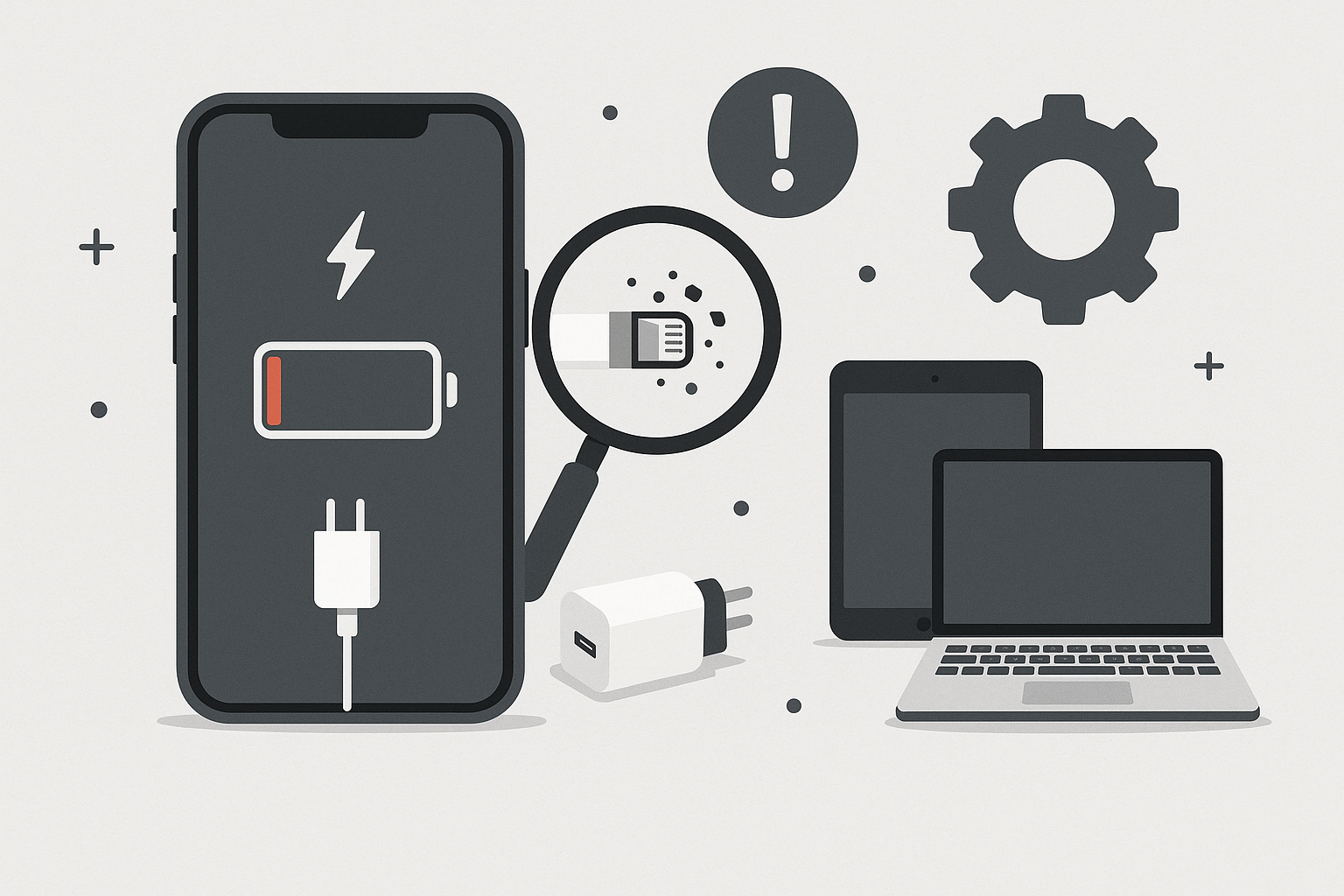
Lint, dust, and pocket debris commonly collect in the Lightning port and block proper contact:
- Power off your iPhone and use a non-metal, thin tool (like a wooden or plastic toothpick) or a clean, dry toothbrush to gently remove debris.
- You can also use a burst of compressed air from a distance to dislodge loose particles.
- After cleaning, try charging again.
If you feel resistance or see corrosion in the port, avoid forcing a cable and bring the device in for inspection — damaged port pins can cause intermittent charging and require repair.
3. Check Battery Health and software settings
Software and battery condition both affect charging speed:
- Go to Settings > Battery > Battery Health to view the Maximum Capacity and whether Peak Performance Capability is reduced. If your battery capacity is significantly degraded, charging and runtime will suffer.
- Make sure your iPhone is running the latest version of iOS (Settings > General > Software Update). Software updates sometimes fix charging bugs.
- Close background apps and disable features you’re not using (Bluetooth, Location Services, Background App Refresh) to reduce power draw while charging.
4. Consider temperature and physical factors
- iPhones charge more slowly if they are too hot or too cold. Try charging in a normal room-temperature environment.
- Thick cases, metal mounts, or MagSafe accessories can affect wireless charging efficiency. Remove the case and try again.
5. Wireless charging troubleshooting
If you use wireless charging:
- Confirm the charger is Qi-certified and placed correctly on the charging pad.
- Remove magnetic mounts, cards, or thick cases that can interfere with contact.
- Try a different wireless charger to rule out pad failure.
6. Advanced steps and resets
If basic steps don’t help:
- Force restart your iPhone (this clears temporary glitches). The exact steps vary by model — check Apple’s support page if unsure.
- As a last software step, back up your phone and perform a factory reset or DFU restore. Only do this after backing up your data.
When to bring your iPhone to FixVise in Dallas–Fort Worth
If you’ve tried the troubleshooting above and your iPhone continues charging slowly or intermittently, it’s time for a professional diagnostic. Bring your device to FixVise if you notice any of the following:
- Charging only works with certain cables/adapters but not others.
- The Lightning port is physically damaged, corroded, or full of debris you can’t safely remove.
- The phone won’t charge at all, shows a swollen battery, or turns off unexpectedly.
- Wireless charging stopped working after a drop or liquid exposure.
At FixVise, our certified technicians provide full diagnostics and repairs across Dallas, Fort Worth, Plano, Arlington, Irving, and surrounding communities. We offer:
- Battery replacement with genuine or high-quality OEM-equivalent parts.
- Charging port repair or replacement when pins are damaged or corrosion is present.
- Liquid damage assessment and professional cleaning.
- Same-day diagnostics and repair options at many locations.
We focus on transparent pricing and clear communication so you know what’s needed and why.
Preventive tips to avoid future charging issues
- Use Apple-certified cables and adapters.
- Keep the Lightning port clean and dry.
- Don’t force cables into the port — align them gently.
- Avoid charging in extreme temperatures.
- Replace cables that show signs of wear.
Ready to get your iPhone charging like new?
If step-by-step troubleshooting didn’t fix your iPhone Charging issues, bring your phone to FixVise for a professional diagnostic. Visit a nearby FixVise shop in the Dallas–Fort Worth area or book an appointment online for fast, reliable service. Our technicians will diagnose the issue, explain your options, and get your iPhone back to reliable charging.
Book a repair or diagnostic at FixVise today and get expert help from technicians who serve the DFW community.