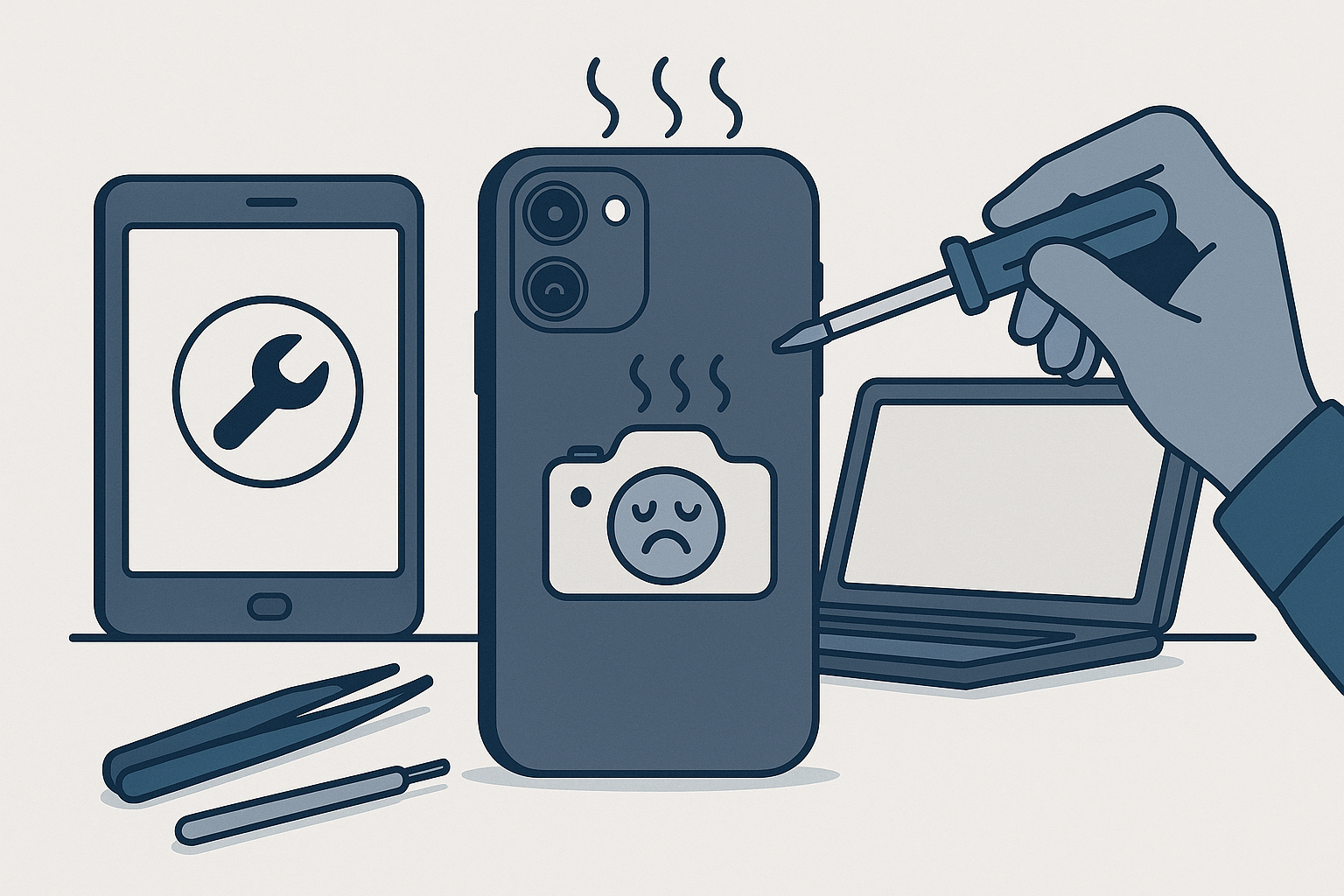
Fix iPhone Camera Issues: Causes & Local Repair Tips
If your iPhone camera is shaking, vibrating, or producing blurry video and photos, it can ruin important moments and make everyday use frustrating. In the Dallas–Fort Worth area, many users encounter camera problems caused by either simple software glitches or physical damage. This guide explains common causes of iPhone camera issues, step-by-step troubleshooting you can try at home, and when to bring your device to FixVise for professional diagnostics and repair.
Why an iPhone camera might shake or vibrate
There are two broad categories of causes:
- Software issues: temporary bugs, app conflicts, or outdated iOS can cause the camera app to behave erratically.
- Hardware problems: physical damage to the camera module, failing optical image stabilization (OIS) components, loose internal connectors, or water exposure can make the lens assembly move or vibrate.
Modern iPhones use small moving parts inside the camera to stabilize images (OIS) and to autofocus. If those parts become misaligned after a drop or are obstructed by debris, you may see visible shaking, hear a faint buzzing, or get persistently blurry photos.
Quick checks you can try right now
Before scheduling a repair, run through these practical steps. They often solve software- or accessory-related problems quickly.
- Remove the case and any magnetic mounts
- Some thick or misfitting cases press on the camera housing and interfere with stabilization. Remove the case and test the camera again.
- Clean the lens
- Use a microfiber cloth to gently wipe the lens. Dust, grit, or moisture on the lens can affect focus and make images look like the camera is shaking.
- Close all apps and restart the Camera app
- Swipe up (or double-press Home on older iPhones) to close background apps, then reopen the Camera app.
- Force restart your iPhone
- A force restart can clear temporary software errors that affect camera performance. (Use the Apple instructions for your model.)
- Update iOS and apps
- Go to Settings > General > Software Update and make sure your iPhone is on the latest iOS. Also update the Camera app or any third-party camera apps you use.
- Switch lenses and modes
- Test in both Photo and Video modes and cycle through wide/ultra-wide/telephoto lenses if your iPhone has multiple cameras. If shaking only appears on one lens, that points to a hardware issue with that specific module.
- Try a third-party camera app
- If the Camera app exhibits shaking but a different app doesn’t, the problem could be software-related.
- Record a short video while stationary
- Place the iPhone on a stable surface and record. If the video still shows vibration, it’s more likely a hardware issue.
When it’s likely a hardware problem
If you’ve tried the steps above and your iPhone camera still vibrates or produces blurred, unstable images, the problem is likely internal. Common hardware causes include:
- A failing OIS or autofocus motor
- A loose or shifted camera module after a drop
- Water or corrosion damage
- Damage from heat or manufacturing defects
Hardware issues often require a professional diagnostic and repair. Attempting to open your iPhone at home can void warranties and risk further damage.
What to expect from professional repair at FixVise
FixVise offers professional diagnostics for iPhone camera issues across the Dallas–Fort Worth metroplex. During a diagnostic, a trained technician will:
- Inspect the camera assembly for visible damage or debris
- Run software checks and camera tests to reproduce the issue
- Verify whether the problem affects one lens or multiple lenses
- Recommend the best repair: cleaning and re-seating the module, replacing the camera module, or addressing water damage
If a replacement part is needed, a certified technician can replace the camera module and test the phone after repair. Before any work begins, FixVise will explain options and get your approval. Always back up your iPhone to iCloud or a computer before bringing it in for repair.
Preventing future iPhone camera issues
- Use a protective case with a raised camera lip to reduce direct impacts to the lens area.
- Avoid exposing your phone to extreme temperatures or moisture.
- Clean the lens regularly with a microfiber cloth and avoid abrasive materials.
- Be cautious with magnetic mounts and accessories that press against the camera housing.
Book a repair in Dallas–Fort Worth
If your troubleshooting steps didn’t stop the shaking or vibrating, let FixVise diagnose and repair your iPhone camera issues. Our technicians in the Dallas–Fort Worth area are experienced with iPhone camera diagnostics and repairs. Save time by booking an appointment online or calling your nearest FixVise location to speak with a technician about symptoms, model details, and next steps.
Don’t let a shaky camera ruin your photos. Contact FixVise today to schedule a professional diagnostic and get your iPhone camera working smoothly again.