Introducing FixVise's FreeQR, Barcode Generator
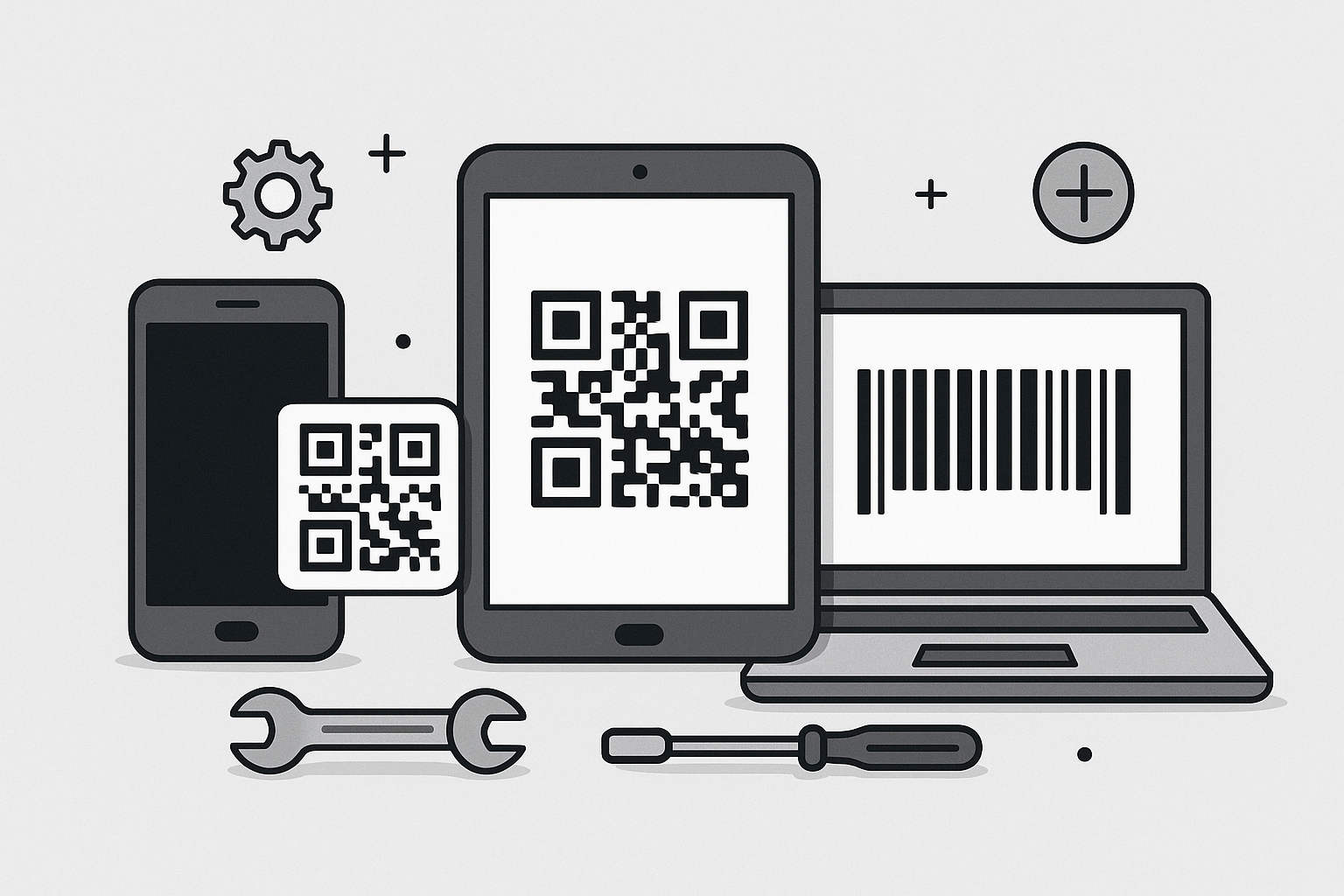
FixVise is proud to offer a simple, no-cost FreeQR, Barcode Generator for residents and businesses across the Dallas–Fort Worth metroplex. Whether you’re a small retail shop in Deep Ellum, a café in Plano, or a FixVise customer who wants to link repair tickets to instructions, our tool helps you create scannable codes for menus, product labeling, receipts, and more.
This guide explains how to use the generator, practical best practices for printing and digital use, security considerations, and friendly ways FixVise can help you integrate codes into your workflow.
How to use the FreeQR, Barcode Generator (step-by-step)
- Access the tool on the FixVise website.
- Choose the code type you need: QR code for URLs, contact cards, or Wi‑Fi credentials; barcode for product SKUs or inventory tracking.
- Enter the data (URL, numeric code, or text). For barcodes, confirm the symbology matches your system (e.g., Code 128 for alphanumeric SKUs).
- Customize basic settings: size, margin/quiet zone, and color contrast. Keep dark foreground on light background for best scan reliability.
- Generate the code and preview it on screen.
- Download the image in a format suitable for web or print and test it with several devices and scanner apps.
Note: If you plan to use the code on printed materials, test printed samples at the intended final size before doing a large run.
Practical design and printing tips
- Size matters: For QR codes used on posters or windows, a minimum of 3 x 3 cm (about 1.2 in) is usually readable at typical viewing distances. For barcodes on product labels, follow your POS or scanner vendor's minimum width recommendations.
- Maintain contrast: Use dark codes on light backgrounds. Avoid placing codes over busy images unless you add a white box background.
- Add quiet zone: Keep a blank margin around the code; many scanners require it to decode properly.
- Vector vs raster: For signage and high-quality prints, use a vector format if available (scales without losing sharpness). For web and mobile, PNG or JPG is generally fine.
- Test in context: Scan codes printed on the final material (receipt paper, textured labels, glossy posters) to confirm readability.
Choosing between dynamic and static codes
- Static codes embed the data directly (e.g., a URL or numeric value). They are simple and free forever but cannot be changed after creation.
- Dynamic codes (if you choose a service that supports them) redirect through an editable link or dashboard so you can update the destination without changing the printed code.
FixVise’s free generator produces reliable static codes that are ideal for one-time links, product labels, and repair receipts. If you need trackable or editable dynamic codes, we can advise on third-party options and how to implement them with your existing materials.
Security and privacy considerations
- Verify URLs: Always confirm the link encoded in a QR code before sharing it publicly to avoid directing customers to malicious sites.
- Minimize sensitive data: Avoid embedding passwords, personal health information, or payment details directly in a code.
- Use HTTPS for links to protect users’ connections.
- Test with different scanner apps to ensure consistent behavior across devices.
If your business needs help validating code destinations or securing links used on repair intake forms, FixVise’s team can review best practices and recommend solutions.
Use cases for DFW businesses and FixVise customers
- Retail: Label inventory with barcodes for faster stock counts.
- Food & beverage: Provide contactless menus and ordering with QR codes on tables and windows.
- Repair shops: Attach a QR code to devices that links to repair status, care instructions, or warranty registration forms.
- Events and promotions: Use QR codes on flyers and van signage to send customers directly to special offers or booking pages.
At FixVise, we often add a QR code to customer repair receipts linking to care tips and diagnostic follow-ups—an easy and professional touch that improves communication.
Best practices for scanning and compatibility
- Try multiple devices: Test codes on iOS and Android devices because built-in camera scanning and third-party apps can behave differently.
- Use up-to-date scanners: Encourage staff or customers to use device-native camera apps or reputable scanner apps for more reliable results.
- Label codes clearly: Add a short action line like “Scan to view repair status” so users know what to expect.
Need help integrating QR codes into your repair workflow?
FixVise not only provides the FreeQR, Barcode Generator, but we also offer repair and consulting services across the Dallas–Fort Worth area. If you’d like us to:
- Add scannable codes to repair tags and receipts
- Test printed labels for legibility with our equipment
- Recommend barcode types compatible with your POS or inventory systems
Our technicians and customer service team can help set this up so your shop runs smoothly.
Final checklist before you publish or print
- Confirm code scans reliably from multiple devices.
- Ensure adequate size and contrast for the intended use.
- Avoid embedding sensitive information directly in codes.
- Add clear instructions or context near the code.
- Test printed copies at final size and material.
Try it now and get support from FixVise
Create your first code free using the FixVise FreeQR, Barcode Generator today. If you want help adding codes to repair receipts, labeling devices, or integrating codes into business signage across Dallas–Fort Worth, contact FixVise to book repair or consultation services. Our team will test codes, recommend printing parameters, and ensure everything works smoothly for your customers.
Book a repair or consultation with FixVise — get expert, local help for phones, tablets, and computers and make QR and barcode use effortless for your business.